Your Saved Items
Save items you're considering to easily find them later.
Your wishlist is empty
Save items you are considering for future procurement to easily find them later.
Recommended For You
View All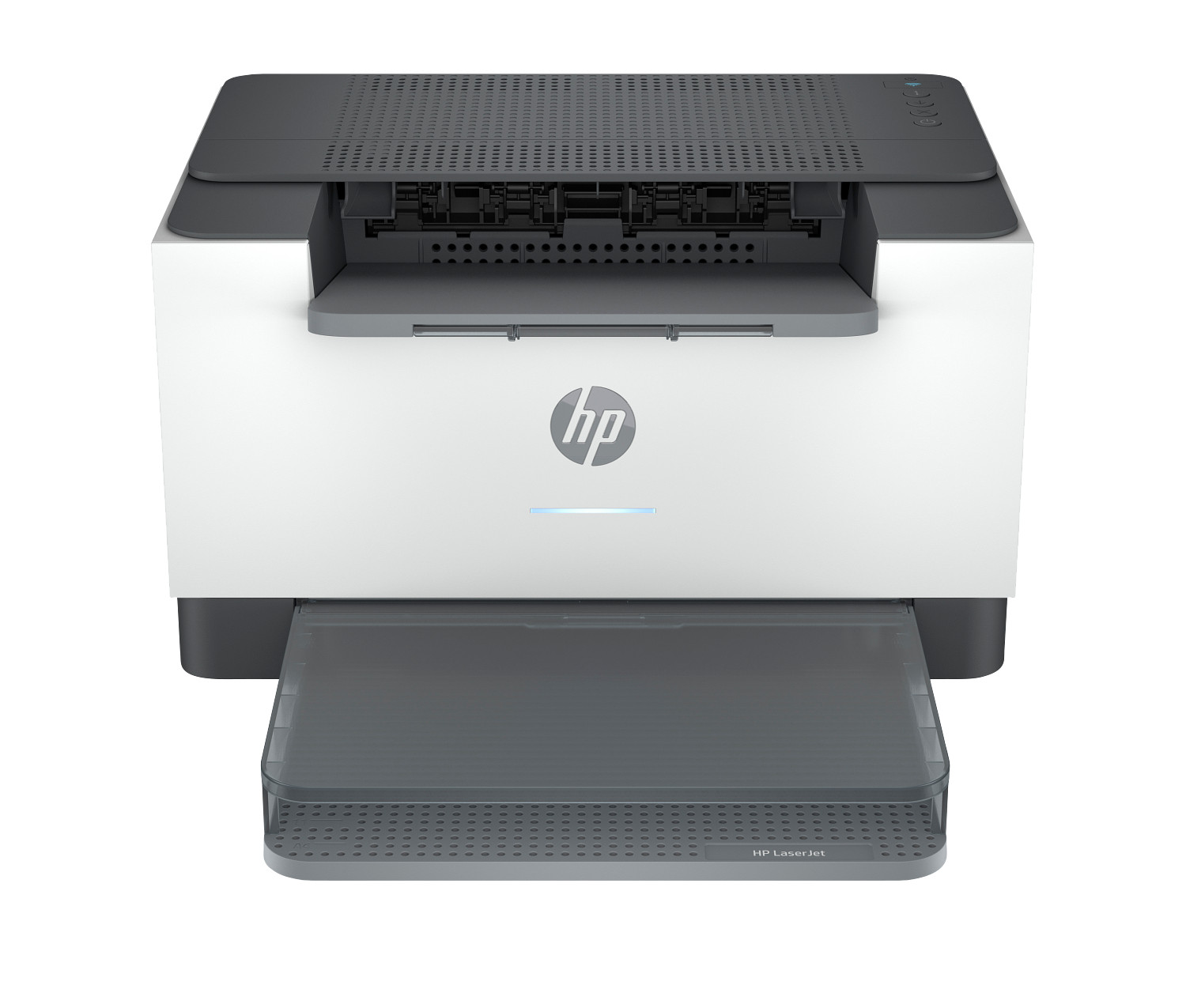
HP LaserJet M209d
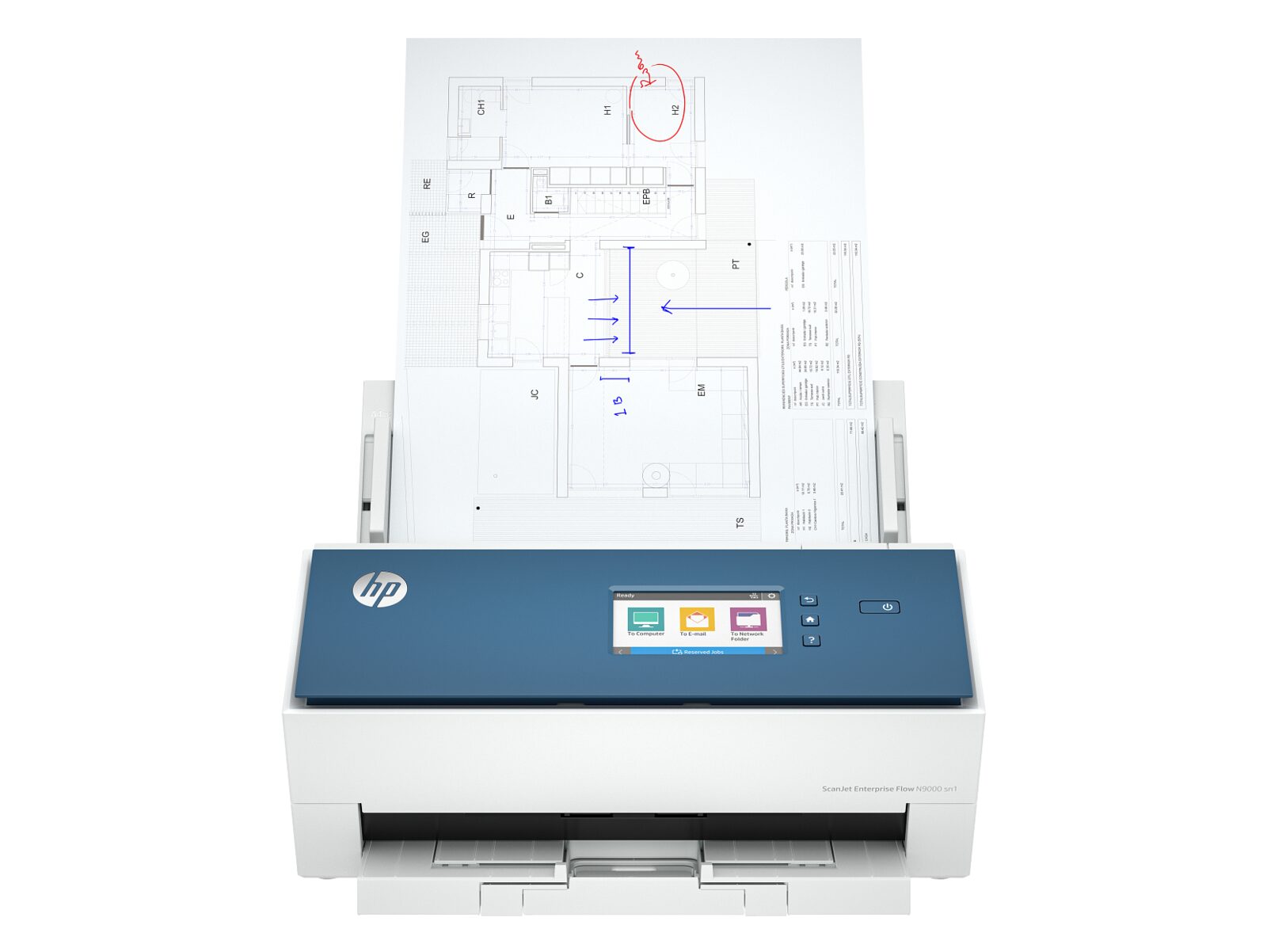
HP ScanJet Enterprise Flow N9000 sn1
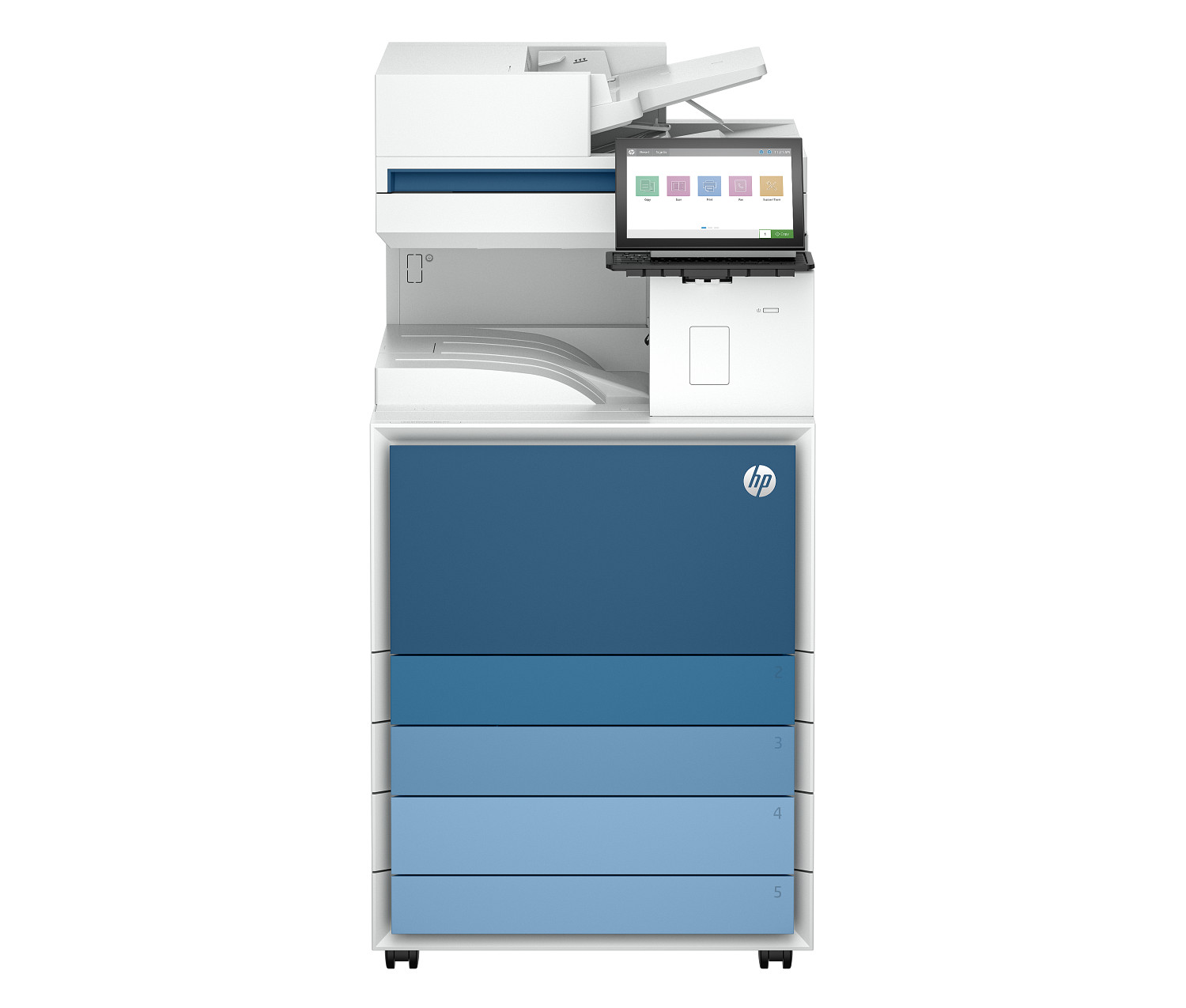
HP LaserJet Enterprise Flow MFP 8601z
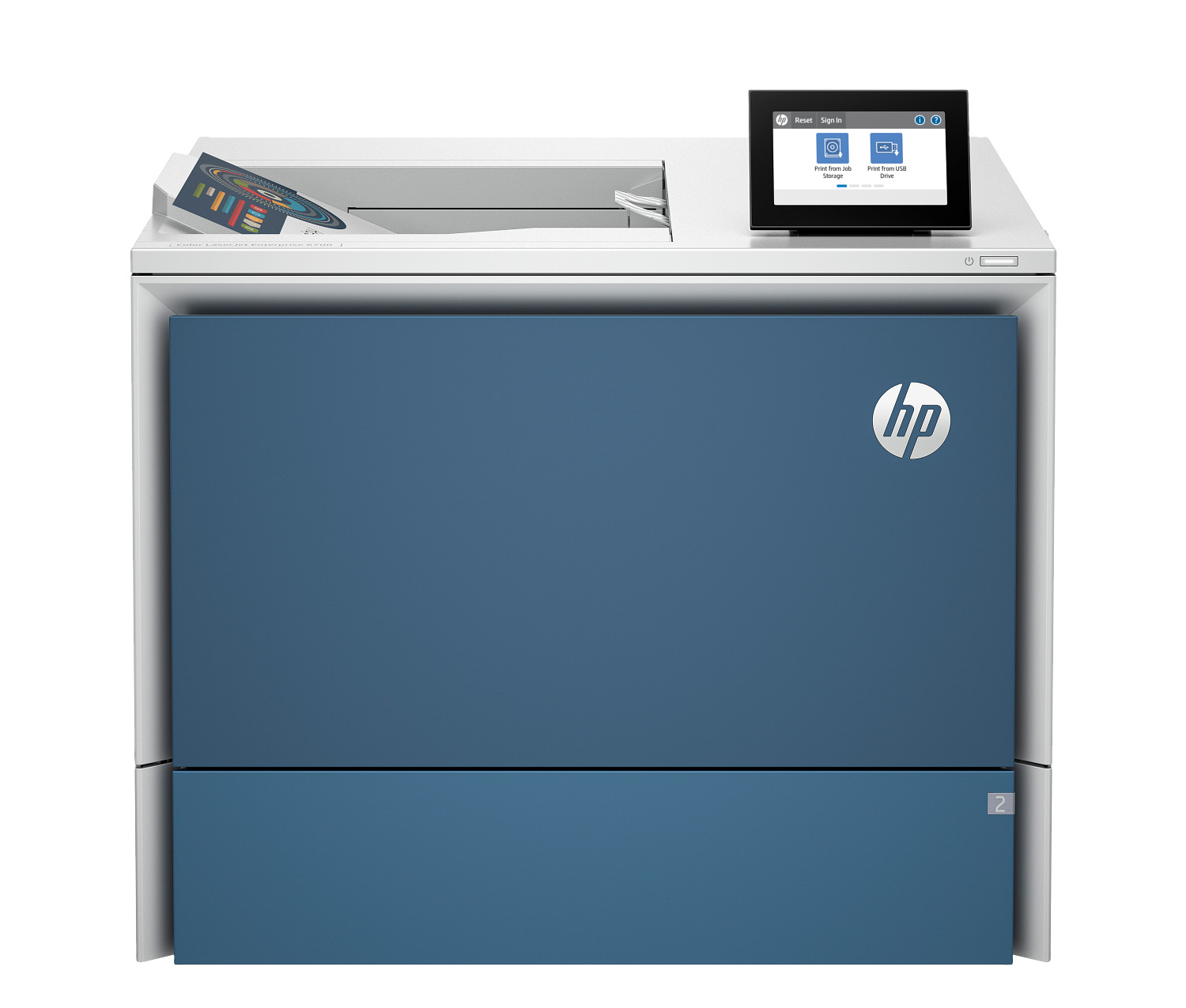
HP Color LaserJet Enterprise 6701dn
Using your ProPrintMart wishlist
The wishlist is the easiest way to keep track of printers and scanners you are considering without committing to a purchase right now. Save anything from the catalog with one click, come back to compare prices later, and convert the saved items to a basket whenever you are ready to order. Items remain in your wishlist until you remove them or add them to the cart yourself.
Wishlists work best when you are weighing two or three similar models against each other. Save the candidates, give yourself a day to think it over, and use the side-by-side specs on each product page to make the final pick. When the right unit goes on sale, you will see the new price reflected in your wishlist instantly.
How the wishlist works
- •Click the heart icon on any product card or product detail page to add the item.
- •The wishlist saves the item, the current price, and the model variant you selected at the moment you added it.
- •Open this page at any time to see your saved items, the current live price, and a quick-add button that drops the item straight into your cart.
- •Items stay on the wishlist across browser sessions if you are signed in to your ProPrintMart account.
- •Guest wishlists are stored in the browser and clear when the browser cache is cleared.
Tips for getting the most out of your wishlist
- 1.Save more than one model in the same series. Comparing two DeskJet units, two LaserJet units, or two ScanJet units side by side often reveals which one fits your real workload best.
- 2.Watch for sale alerts. We mark units that recently dropped in price and you will see those badges directly inside your wishlist.
- 3.Use the wishlist as a shopping list when you order printers for a school, office, or church. Save every model you need, then convert the whole list to a single cart at checkout.
- 4.Share the link with a household member or office manager who needs to approve the purchase before you click order.
- 5.Clear out items you no longer want with the small remove button next to each row, so the list stays focused on the units you are actually considering.
Common questions about the wishlist
Does adding an item to the wishlist reserve stock?
No. Wishlist items are saved for your reference only. Stock is reserved at the moment you actually add a unit to the cart and complete the checkout. If a unit on your wishlist sells out, the page will show it as out of stock and you can switch to a comparable model.
Will the price change after I save an item?
The price on your wishlist updates to the current live price each time you load the page. We highlight any item where the price dropped since you saved it so you can spot a sale right away.
Can I move everything from the wishlist to the cart at once?
Yes. Use the move all to cart button at the top of the wishlist to convert the entire list into cart line items in one click. You can still adjust quantities or remove individual items in the cart before paying.
Will my wishlist sync across devices?
If you are signed in to your ProPrintMart account, the wishlist syncs across every device where you sign in. Guest wishlists are stored locally in the browser and only appear on that device.
How long do items stay on the wishlist?
Items stay until you remove them. There is no automatic expiry. We do not send unsolicited reminder emails about items in your wishlist either, so the list remains a low-pressure place to keep ideas you are still thinking about.
Can I export the wishlist as a quote?
Business buyers can call our team and read out the model numbers from a wishlist to receive a formal quote with bulk pricing, tax-exempt handling, and net thirty payment terms. The quote arrives by email as a PDF the same business day.
Browse and add to your wishlist
If your wishlist is empty, the catalog has plenty of starting points. Open any series page below and click the heart icon on the units you want to compare. The wishlist updates the moment you click.
More from ProPrintMart
Looking for something else? Head back to the ProPrintMart home page to explore featured printers and current promotions, or browse the dedicated series pages below for more options in a specific line.
- • Visit the ProPrintMart main page for the latest deals.
- • Browse every DeskJet home printer we stock.
- • Compare every LaserJet office printer in our catalog.
- • See every ScanJet document scanner currently in stock.
- • Check the full ProPrintMart printer catalog.
- • Read our printer buying guides on the blog.
Need help choosing? Contact our team or return to the ProPrintMart homepage at any time.