Setting Up a New Commercial Printer: A Practical Walkthrough
Getting Started With Your New Equipment
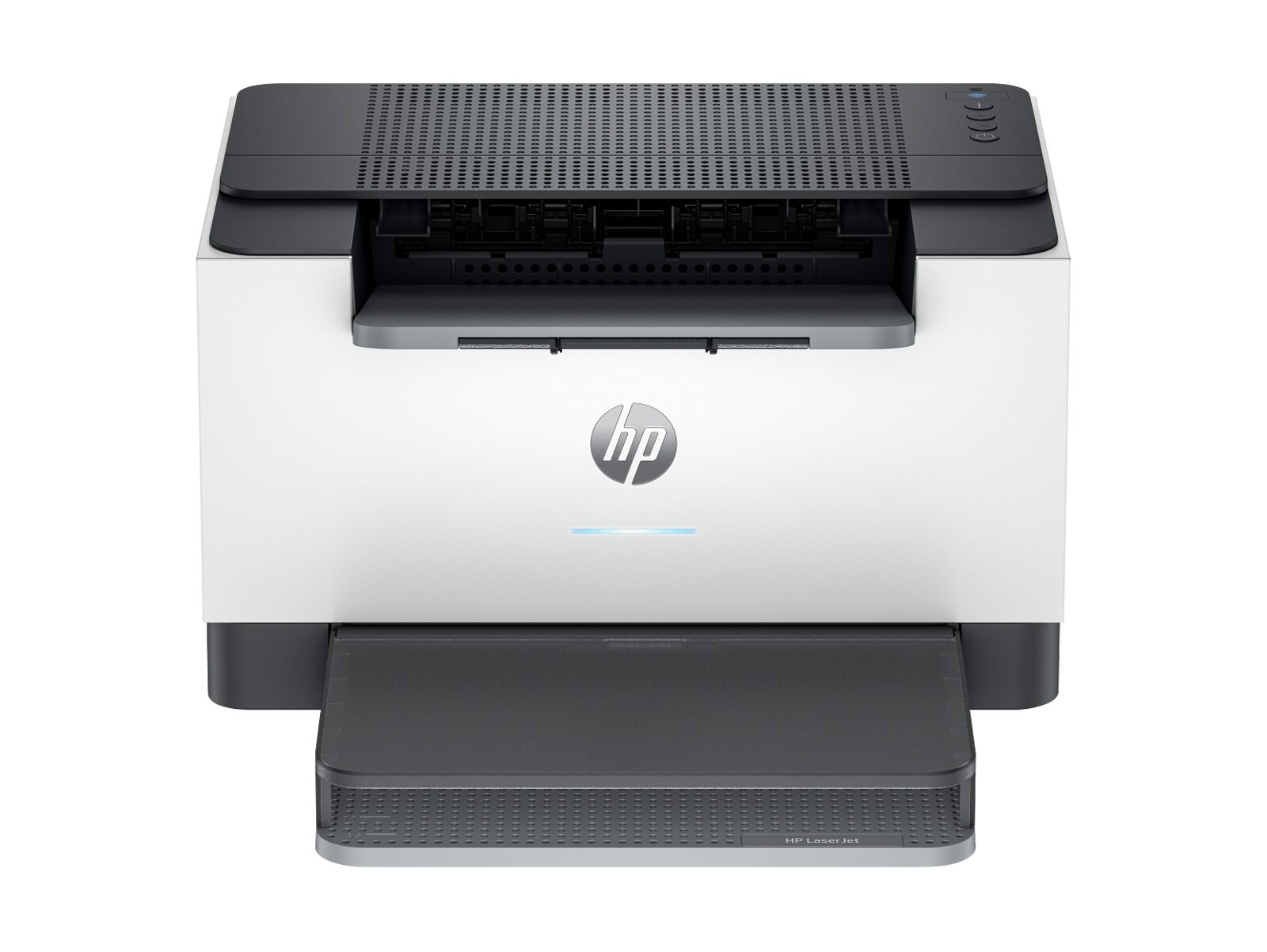
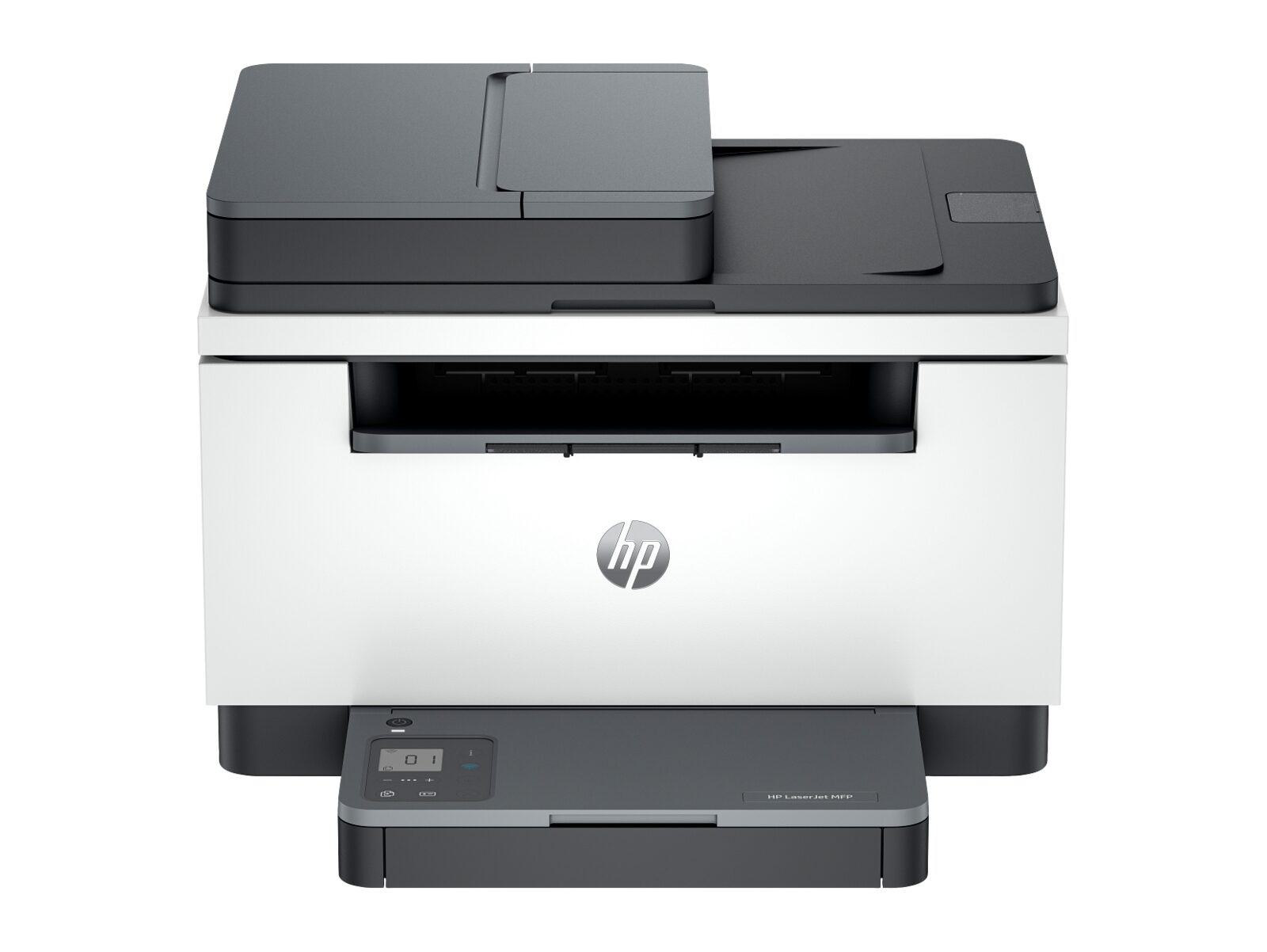
Congratulations on your new commercial printer. Whether you have ordered a LaserJet Enterprise, a Color LaserJet multifunction unit, or another heavy-duty office machine, the setup process follows a similar pattern. The walkthrough below is meant to help your team get the printer ready for everyday use.
Unpacking and First Look
Enterprise printers are heavy. Many weigh 50 to 100 pounds, so two people are usually needed to lift one out of the carton. Before plugging in the power cord:
- Remove all packing tape, foam inserts, and orange transit pieces from inside every tray and under the lid.
- Take a quick photo of any cosmetic shipping marks so the condition is documented.
- Open the "Getting Started" booklet, which shows exactly where the transit pieces and packing materials are placed inside the chassis.
Loading Toner and Paper
Your printer comes with starter toner cartridges, which usually have a lower yield than standard replacements. Load them by following the booklet — most enterprise units use a simple slide-and-click mechanism. Then load paper into the main tray and adjust the paper guides to match the size you use (typically Letter or A4).
Connecting to Your Network
For the most reliable connection in a business environment, use an Ethernet cable plugged into your office switch or router. The printer will automatically receive an IP address through DHCP. Wi-Fi is also available through the touchscreen setup wizard, although wired connections are more stable for heavy daily use.
Connecting Your Computers
Most modern office printers are plug-and-play on Windows and macOS — your computer will detect the new device on the network automatically. For full functionality, such as advanced print presets or document workflows, add the official driver package for your specific model from the manufacturer's support site.
Configuring Basic Settings
From the printer's touchscreen, or from its built-in web interface (type the printer's IP address into a browser), adjust the following defaults to match your office:
- Default paper size and type.
- Two-sided (duplex) printing as the default to save paper.
- Black and white as the default to save on color toner.
- Sleep and energy settings that match your office hours.
- Outbound mail server information, used for sending captured documents to email recipients.
A First Print Job
Once the configuration is saved, send a short document from your computer to the printer. The first job acts as a quick check that the cables, drivers, and queue are all working together. After that, the printer is ready for your team to use day to day.